
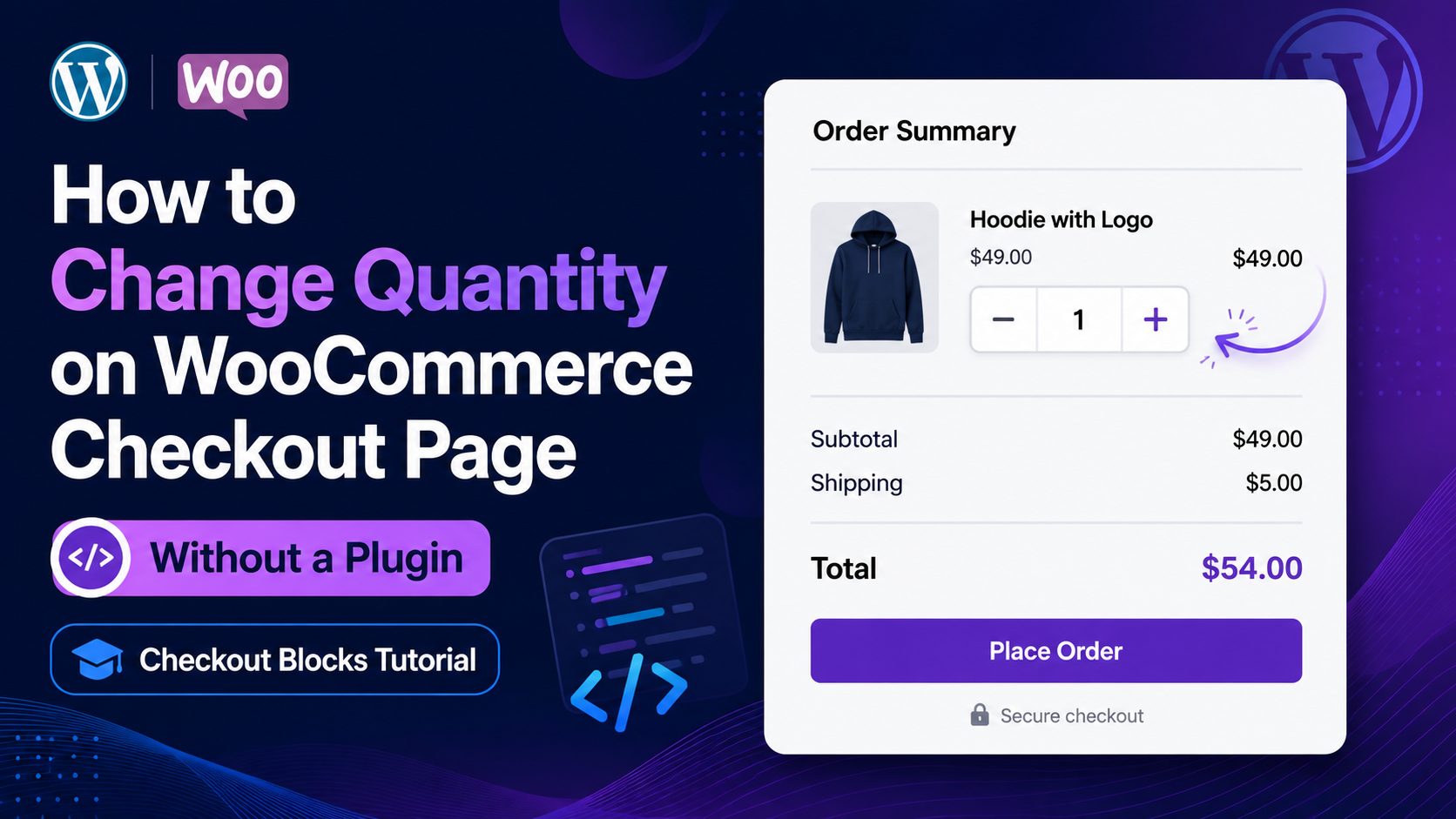
WooCommerce normally expects customers to adjust product quantities from the cart before moving to checkout. But this can create unnecessary friction if someone reaches the checkout page and then realizes they need two items instead of one.
In this tutorial, I’ll show you how to let customers change quantity on the WooCommerce checkout page by adding simple minus, quantity and plus controls directly to the order summary.
The solution is designed for the newer WooCommerce Checkout Block and does not require installing another WooCommerce quantity plugin.
Quick Answer: Can Customers Change Quantity on WooCommerce Checkout?
Yes. You can add editable quantity controls to the WooCommerce checkout page with a custom code snippet.
The result looks roughly like this:
Product Name
Quantity:
[ − ] [ 1 ] [ + ]
When the customer increases or decreases the quantity, WooCommerce updates the cart and recalculates the checkout totals.
This tutorial specifically covers the newer WooCommerce block-based checkout.
Why Add a Quantity Selector to WooCommerce Checkout?
Consider this situation.
A customer adds one product, proceeds to checkout and then realizes they actually need two.
Without a quantity selector at checkout, they may need to:
- Leave checkout.
- Return to the cart.
- Change the quantity.
- Update the cart.
- Go back to checkout.
Adding a WooCommerce checkout quantity field removes those extra steps.
Customers can adjust their order while remaining on the page where they are already preparing to pay.
This can be especially useful for:
- Event tickets
- Physical products
- Product bundles
- Supplies
- Food orders
- Wholesale products
- Multiple admissions
- Products customers commonly purchase in multiples
WooCommerce Classic Checkout vs Checkout Block
Before adding code, it is important to know which WooCommerce checkout you are using.
Older WooCommerce tutorials often use PHP hooks such as:
woocommerce_review_order_before_cart_contents
or
woocommerce_checkout_update_order_review
Those approaches were primarily designed around the classic shortcode checkout.
Modern WooCommerce websites can instead use the Checkout Block, which is largely rendered with JavaScript and WooCommerce Blocks.
That means copying an old PHP tutorial may either do nothing or produce unreliable results on a block-based checkout.
The solution below is designed specifically around the newer WooCommerce Checkout Block.
Add Quantity Plus and Minus Buttons to WooCommerce Checkout
You can add this code with a snippets plugin or through a properly managed custom plugin.
If you already use a snippets plugin:
- Go to WordPress Dashboard → Code Snippets.
- Add a new PHP snippet.
- Give it a name such as WooCommerce Checkout Quantity Selector.
- Paste the code below.
- Set it to run on the frontend/site-wide as appropriate.
- Save and activate it.
WooCommerce Checkout Quantity Code
/**
 * Editable Quantity on WooCommerce Block Checkout
 *
 * Adds - / quantity / + controls to products inside
 * the WooCommerce Checkout Block order summary.
 */

add_action( 'wp_footer', function () {

	if ( ! function_exists( 'is_checkout' ) || ! is_checkout() || is_order_received_page() ) {
		return;
	}
	?>

	<style>
		.km-checkout-qty-wrap {
			display: flex;
			align-items: center;
			gap: 0;
			margin-top: 10px;
			width: fit-content;
			border: 1px solid #d5d5d5;
			border-radius: 6px;
			overflow: hidden;
			background: #fff;
		}

		.km-checkout-qty-btn {
			width: 34px;
			height: 34px;
			padding: 0 !important;
			margin: 0 !important;
			border: 0 !important;
			border-radius: 0 !important;
			background: #f6f6f6 !important;
			color: #222 !important;
			font-size: 20px !important;
			font-weight: 500;
			line-height: 34px !important;
			text-align: center;
			cursor: pointer;
		}

		.km-checkout-qty-btn:hover {
			background: #ececec !important;
		}

		.km-checkout-qty-btn:disabled {
			opacity: .4;
			cursor: not-allowed;
		}

		.km-checkout-qty-input {
			width: 45px !important;
			height: 34px !important;
			min-height: 34px !important;
			padding: 0 4px !important;
			margin: 0 !important;
			border: 0 !important;
			border-left: 1px solid #d5d5d5 !important;
			border-right: 1px solid #d5d5d5 !important;
			border-radius: 0 !important;
			background: #fff !important;
			color: #222 !important;
			text-align: center;
			font-size: 14px !important;
			box-shadow: none !important;
			appearance: textfield;
			-moz-appearance: textfield;
		}

		.km-checkout-qty-input::-webkit-inner-spin-button,
		.km-checkout-qty-input::-webkit-outer-spin-button {
			-webkit-appearance: none;
			margin: 0;
		}

		.km-checkout-qty-label {
			display: block;
			font-size: 12px;
			font-weight: 600;
			margin-top: 8px;
			margin-bottom: 3px;
			color: #555;
		}

		.km-has-checkout-qty
		.wc-block-components-order-summary-item__quantity {
			display: none !important;
		}

		.km-checkout-qty-loading {
			opacity: .55;
			pointer-events: none;
		}
	</style>

	<script>
	(function () {
		'use strict';

		let started = false;
		let syncTimer = null;

		function getWooStore() {
			if (
				! window.wp ||
				! window.wp.data ||
				! window.wc ||
				! window.wc.wcBlocksData ||
				! window.wc.wcBlocksData.cartStore
			) {
				return null;
			}

			return window.wc.wcBlocksData.cartStore;
		}

		function getCartItems() {
			const cartStore = getWooStore();

			if (!cartStore) {
				return [];
			}

			try {
				const data = window.wp.data.select(cartStore).getCartData();

				return data && Array.isArray(data.items)
					? data.items
					: [];
			} catch (error) {
				return [];
			}
		}

		function getLimits(item) {
			const limits = item.quantity_limits || {};

			let min = parseInt(limits.minimum, 10);
			let max = parseInt(limits.maximum, 10);
			let step = parseInt(limits.multiple, 10);

			if (!Number.isFinite(min) || min < 1) {
				min = 1;
			}

			if (!Number.isFinite(step) || step < 1) {
				step = 1;
			}

			if (!Number.isFinite(max) || max < min) {
				max = 9999;
			}

			return {
				min: min,
				max: max,
				step: step,
				editable: limits.editable !== false
			};
		}

		function clampQuantity(qty, limits) {
			qty = parseInt(qty, 10);

			if (!Number.isFinite(qty)) {
				qty = limits.min;
			}

			return Math.max(
				limits.min,
				Math.min(limits.max, qty)
			);
		}

		async function updateQuantity(key, quantity, control) {
			const cartStore = getWooStore();

			if (!cartStore || !key) {
				return;
			}

			control.classList.add('km-checkout-qty-loading');

			try {
				const action = window.wp.data.dispatch(cartStore);

				await Promise.resolve(
					action.changeCartItemQuantity(
						key,
						parseInt(quantity, 10)
					)
				);

			} catch (error) {

				console.error(
					'Checkout quantity update failed:',
					error
				);

				window.alert(
					'Unable to update the quantity. Please try again.'
				);

			} finally {

				control.classList.remove(
					'km-checkout-qty-loading'
				);

				setTimeout(syncControls, 100);
			}
		}

		function createControl(item, row) {
			const limits = getLimits(item);

			if (!limits.editable) {
				return;
			}

			const quantity =
				parseInt(item.quantity, 10) || limits.min;

			const container =
				document.createElement('div');

			container.className =
				'km-checkout-qty-container';

			const label =
				document.createElement('span');

			label.className =
				'km-checkout-qty-label';

			label.textContent = 'Quantity';

			const control =
				document.createElement('div');

			control.className =
				'km-checkout-qty-wrap';

			control.dataset.key = item.key;

			const minus =
				document.createElement('button');

			minus.type = 'button';
			minus.className =
				'km-checkout-qty-btn km-checkout-qty-minus';

			minus.setAttribute(
				'aria-label',
				'Decrease quantity'
			);

			minus.textContent = '−';

			const input =
				document.createElement('input');

			input.type = 'number';
			input.className =
				'km-checkout-qty-input';

			input.value = quantity;
			input.min = limits.min;
			input.max = limits.max;
			input.step = limits.step;

			input.setAttribute(
				'aria-label',
				'Product quantity'
			);

			const plus =
				document.createElement('button');

			plus.type = 'button';
			plus.className =
				'km-checkout-qty-btn km-checkout-qty-plus';

			plus.setAttribute(
				'aria-label',
				'Increase quantity'
			);

			plus.textContent = '+';

			minus.disabled =
				quantity <= limits.min;

			plus.disabled =
				quantity >= limits.max;

			control.appendChild(minus);
			control.appendChild(input);
			control.appendChild(plus);

			container.appendChild(label);
			container.appendChild(control);

			minus.addEventListener('click', function () {

				const current =
					parseInt(input.value, 10) || limits.min;

				const newQuantity =
					clampQuantity(
						current - limits.step,
						limits
					);

				if (newQuantity === current) {
					return;
				}

				input.value = newQuantity;

				updateQuantity(
					item.key,
					newQuantity,
					control
				);
			});

			plus.addEventListener('click', function () {

				const current =
					parseInt(input.value, 10) || limits.min;

				const newQuantity =
					clampQuantity(
						current + limits.step,
						limits
					);

				if (newQuantity === current) {
					return;
				}

				input.value = newQuantity;

				updateQuantity(
					item.key,
					newQuantity,
					control
				);
			});

			input.addEventListener('change', function () {

				const newQuantity =
					clampQuantity(
						input.value,
						limits
					);

				input.value = newQuantity;

				updateQuantity(
					item.key,
					newQuantity,
					control
				);
			});

			const description =
				row.querySelector(
					'.wc-block-components-order-summary-item__description'
				);

			if (description) {
				description.appendChild(container);
			} else {
				row.appendChild(container);
			}

			row.classList.add(
				'km-has-checkout-qty'
			);
		}

		function syncControls() {
			const items = getCartItems();

			if (!items.length) {
				return;
			}

			const rows = document.querySelectorAll(
				'.wc-block-components-order-summary-item'
			);

			if (!rows.length) {
				return;
			}

			rows.forEach(function (row, index) {

				const item = items[index];

				if (!item) {
					return;
				}

				const limits = getLimits(item);

				if (!limits.editable) {

					const old = row.querySelector(
						'.km-checkout-qty-container'
					);

					if (old) {
						old.remove();
					}

					row.classList.remove(
						'km-has-checkout-qty'
					);

					return;
				}

				let container = row.querySelector(
					'.km-checkout-qty-container'
				);

				if (!container) {
					createControl(item, row);
					return;
				}

				const control =
					container.querySelector(
						'.km-checkout-qty-wrap'
					);

				const input =
					container.querySelector(
						'.km-checkout-qty-input'
					);

				const minus =
					container.querySelector(
						'.km-checkout-qty-minus'
					);

				const plus =
					container.querySelector(
						'.km-checkout-qty-plus'
					);

				if (!control || !input) {
					return;
				}

				const quantity =
					parseInt(item.quantity, 10) ||
					limits.min;

				control.dataset.key = item.key;

				if (
					document.activeElement !== input &&
					!control.classList.contains(
						'km-checkout-qty-loading'
					)
				) {
					input.value = quantity;
				}

				input.min = limits.min;
				input.max = limits.max;
				input.step = limits.step;

				if (minus) {
					minus.disabled =
						quantity <= limits.min;
				}

				if (plus) {
					plus.disabled =
						quantity >= limits.max;
				}

				row.classList.add(
					'km-has-checkout-qty'
				);
			});
		}

		function scheduleSync() {
			clearTimeout(syncTimer);

			syncTimer = setTimeout(
				syncControls,
				80
			);
		}

		function start() {
			if (started || !getWooStore()) {
				return false;
			}

			started = true;

			syncControls();

			const observer =
				new MutationObserver(scheduleSync);

			observer.observe(
				document.body,
				{
					childList: true,
					subtree: true
				}
			);

			window.wp.data.subscribe(scheduleSync);

			return true;
		}

		const boot = setInterval(function () {

			if (start()) {
				clearInterval(boot);
			}

		}, 250);

		setTimeout(function () {
			clearInterval(boot);
		}, 15000);

	})();
	</script>

	<?php
}, 100 );
What Does This WooCommerce Checkout Code Do?
The code performs several jobs.
1. Runs Only on Checkout
The snippet checks whether the visitor is on the WooCommerce checkout page.
It does not load the functionality throughout the rest of the website.
2. Reads the Current WooCommerce Cart
The JavaScript connects to WooCommerce’s cart data store and reads the current checkout items.
This allows the quantity control to correspond with the customer’s actual cart.
3. Adds Plus and Minus Quantity Buttons
Each editable checkout item receives:
- A minus button
- A numeric quantity input
- A plus button
The controls are added underneath the corresponding product information.
4. Updates the Real WooCommerce Cart
Changing the visible number alone would not be enough.
The code uses WooCommerce’s cart functionality to change the actual cart item quantity.
This is the important part of the implementation.
5. WooCommerce Recalculates the Checkout
After the cart quantity changes, WooCommerce can update the checkout information associated with that cart state.
Depending on the store configuration, this can include:
- Product subtotal
- Discounts
- Taxes
- Shipping calculations
- Checkout total
6. Respects Product Quantity Limits
The code also checks the quantity rules returned for the product.
That means it can respect values such as:
- Minimum quantity
- Maximum quantity
- Quantity increments
- Whether quantity editing is allowed
This is safer than simply displaying an unrestricted number field.
Why Does the Code Watch for Checkout Changes?
The WooCommerce Checkout Block is dynamically rendered.
Parts of the order summary may be rebuilt after cart data changes.
If we inserted the quantity field only once, WooCommerce could potentially replace that part of the page during a checkout refresh.
The snippet therefore watches the checkout interface and restores the quantity controls when necessary.
Product Quantity Stuck at 1?
If the quantity selector appears but customers cannot increase the product above one, check the product’s inventory settings.
Go to:
Products → Edit Product → Product Data → Inventory
Look for:
Sold individually
If Sold individually is enabled, WooCommerce intentionally limits customers to one unit of that product.
Disable the setting if customers should be allowed to purchase multiple quantities.
Do not override this restriction in custom code unless there is a specific business reason for doing so.
What Happens When a Customer Clicks the Plus Button?
Suppose the checkout contains:
Event Ticket – $80
with quantity:
1
The customer clicks the plus button.
The quantity becomes:
2
The cart item is updated through WooCommerce and the checkout can then reflect the new order amount:
2 × $80 = $160
The customer does not need to return to the cart page simply to change the quantity.
Does This Work With WooCommerce Checkout Blocks?
Yes. This tutorial was created specifically for the newer WooCommerce Checkout Block rather than relying only on older classic-checkout PHP hooks.
If your checkout page contains the WordPress/WooCommerce Checkout Block, this is the type of implementation you need.
Does This Work With the Classic WooCommerce Checkout?
This particular snippet is intended for the block checkout.
The classic WooCommerce shortcode checkout uses a different HTML structure and provides PHP hooks that can be used to implement similar functionality.
If you are working on an older store using:
[woocommerce_checkout]
you should use a solution designed specifically for the classic checkout instead of forcing block-specific JavaScript onto it.
How Do I Know Whether I Use Checkout Blocks?
Edit your checkout page in WordPress.
If you see a visual Checkout block in the editor, you are likely using the block checkout.
If the page primarily contains:
[woocommerce_checkout]
you are using the classic checkout.
You may also see WooCommerce block-related scripts and classes in the page source when the modern checkout is active.
Should I Add the Code to functions.php?
You can, but I generally prefer putting functionality like this in a snippets manager or a small custom plugin.
Adding permanent ecommerce functionality directly to a parent theme’s functions.php file can create maintenance problems.
A theme update may overwrite changes if the code was placed directly inside theme files.
For business-critical or more complex WooCommerce functionality, a custom plugin is usually easier to isolate, test and maintain.
If your store needs functionality beyond a simple snippet, see my Custom WordPress Plugin Development Services for custom WooCommerce extensions, checkout functionality, integrations and business-specific workflows.
Code Snippet vs WooCommerce Plugin
There is no single correct solution for every store.
Use a Code Snippet When:
- You only need this specific quantity feature.
- You control the website.
- You can test changes properly.
- You want to avoid installing a large plugin for one small feature.
- Your checkout structure is compatible with the implementation.
Consider a Plugin When:
- Non-technical administrators need settings.
- You need quantity rules for many product types.
- You want removal controls and other checkout features.
- Multiple themes or checkout systems need support.
- You need ongoing compatibility maintained by a dedicated product.
Custom code is useful when it solves a focused requirement cleanly. It should not be used simply to avoid every plugin.
Important Testing Before Using This on a Live Store
Checkout functionality directly affects orders, so test the implementation before relying on it on a production website.
Test at least the following:
- Increase quantity
- Decrease quantity
- Manually enter quantity
- Multiple products in the order
- Variable products
- Sale products
- Coupon codes
- Tax calculations
- Shipping calculations
- Mobile checkout
- Desktop checkout
- Guest checkout
- Logged-in checkout
- Your active payment gateways
Also test the site’s minimum and maximum quantity rules if you use them.
What If the Quantity Buttons Do Not Appear?
There are several things to check.
Confirm You Are Using Checkout Blocks
This code is specifically designed around the WooCommerce Checkout Block.
Clear Website Caches
Clear:
- WordPress cache
- Server cache
- CDN cache
- JavaScript optimization cache
Then reload checkout in a private/incognito browser window.
Check JavaScript Optimization
Aggressive JavaScript delay, combining or optimization can occasionally interfere with dynamic WooCommerce functionality.
Temporarily disable the relevant optimization if you are troubleshooting.
Check the Browser Console
Open your browser’s developer tools and check the Console tab for JavaScript errors.
An error from another theme or plugin can sometimes stop checkout JavaScript before custom functionality runs.
Check Product Settings
If the controls appear but cannot exceed one, make sure Sold individually is not enabled for the product.
Is It Safe to Customize WooCommerce Checkout?
WooCommerce checkout can be customized, but checkout changes deserve more testing than normal visual changes.
Your checkout is connected to:
- Cart data
- Customer information
- Shipping
- Taxes
- Coupons
- Payment methods
- Order creation
A small visual customization is one thing. Changes that affect pricing, quantities or order data should always be tested thoroughly.
Never edit WooCommerce plugin core files directly.
Those files can be replaced when WooCommerce updates.
A Real Example of This WooCommerce Customization
I originally worked on this type of requirement while customizing a WooCommerce-based website where customers needed to purchase multiple entries directly through the checkout flow.
The checkout used the newer WooCommerce block system, so many older snippets designed for the classic checkout were not appropriate.
That is why identifying the checkout type before writing the solution matters.
You can also view my FlavHer WordPress migration and WooCommerce project for another example of WordPress, Elementor and WooCommerce implementation work.
Need Custom WooCommerce Functionality?
WooCommerce can support much more than a basic online shop, but some businesses eventually need functionality that standard settings cannot provide.
I work on custom WooCommerce functionality including:
- Checkout customization
- Custom product logic
- Pricing rules
- Custom plugins
- API integrations
- Payment workflows
- Booking integrations
- Customer validation
- Product configuration
- External data integrations
- Custom admin tools
If your requirement is more complex than this quantity selector, you can review my WordPress Plugin Development Services or contact me with the workflow you need.
Frequently Asked Questions
Can customers change product quantity on the WooCommerce checkout page?
Yes. A custom quantity selector can be added to the checkout so customers can increase or decrease product quantities without returning to the cart. The implementation depends on whether the site uses the classic checkout or WooCommerce Checkout Blocks.
How do I add a quantity field to WooCommerce checkout?
For a Checkout Block, you can read the WooCommerce cart data, display a quantity selector for each item and update the corresponding cart item when the customer changes its quantity.
Can I change WooCommerce checkout quantity without a plugin?
Yes. A custom code snippet can add quantity controls to the checkout without installing a dedicated quantity plugin. Custom checkout code should be tested carefully before being used on a live store.
Does WooCommerce allow quantity changes at checkout by default?
WooCommerce commonly displays the quantity as part of the checkout order summary but does not provide the same editable quantity experience customers normally have on the cart page. Custom code or an extension can add that functionality.
Does this code work with WooCommerce Checkout Blocks?
Yes. The code in this tutorial is intended for the WooCommerce block-based checkout.
Does this code work with the classic WooCommerce checkout?
No. The classic shortcode checkout uses different markup and PHP hooks. A classic-checkout-specific solution should be used instead.
Why can I not increase a WooCommerce product quantity above one?
Check whether Sold individually is enabled under the product’s inventory settings. When enabled, WooCommerce intentionally restricts that product to one item per order.
Will the checkout total update when quantity changes?
The quantity control changes the WooCommerce cart item rather than only changing the visible number. WooCommerce can therefore refresh totals based on the updated cart state.
Can I add plus and minus buttons to WooCommerce checkout?
Yes. The snippet in this tutorial adds minus and plus controls around the quantity field for editable products in the Checkout Block.
Should WooCommerce custom code go in functions.php or a plugin?
A small snippet can be managed with a code-snippet tool. Larger or business-critical WooCommerce functionality is usually better isolated inside a custom plugin so it is easier to maintain and does not depend on the active theme.
Final Thoughts
Adding a quantity selector to the WooCommerce checkout page can make the purchasing process more convenient when customers commonly buy multiple units of a product.
The most important part is using an implementation that matches your checkout system.
Older WooCommerce tutorials often target the classic shortcode checkout. If your website uses the modern WooCommerce Checkout Block, the cart needs to be handled through the newer block-based functionality instead.
The code above adds accessible plus and minus controls, respects WooCommerce quantity limits and updates the actual cart item rather than simply changing what appears on screen.
If you need a more advanced WooCommerce checkout, custom product workflow or purpose-built WordPress plugin, review my Custom WordPress Plugin Development Services or contact me to discuss your requirements.
