
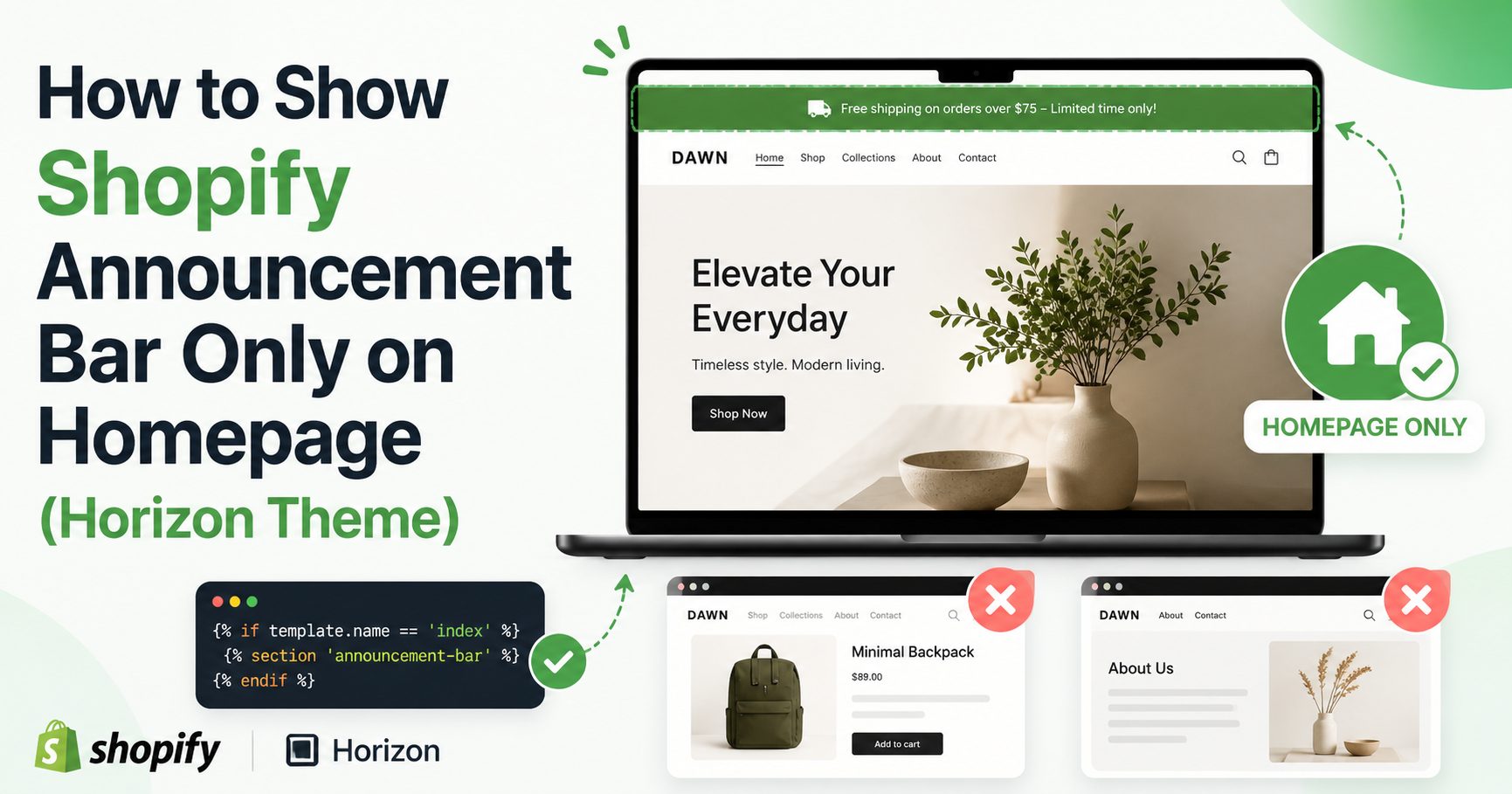
Want to show an announcement bar only on your Shopify homepage and hide it from product, collection, cart and other pages? You can do it with a small Liquid condition, without installing an announcement bar app.
This tutorial shows a simple method for the Shopify Horizon theme, including ready-to-use code for a basic announcement bar, a bar with one button, and an announcement bar with two buttons.
Shopify announcement bars are useful for promoting free shipping, sales, new products, important notices and limited-time offers. However, you might not want the same message taking up space on every page of your store.
The solution is to check whether the visitor is currently viewing the Shopify homepage before outputting the announcement bar.
Use the Shopify Liquid condition {% if request.page_type == 'index' %} around your announcement bar. Shopify identifies the store homepage as the index page type, so the content inside the condition is rendered only on the homepage.
Shopify Liquid Code to Show Content Only on the Homepage
The core condition used throughout this tutorial is:
{% if request.page_type == 'index' %}
  <div class="homepage-top-bar">
    <p>Welcome to our store!</p>
  </div>
{% endif %}
The important part is:
{% if request.page_type == 'index' %}

  Your homepage-only content goes here.

{% endif %}
When a customer visits your homepage, Shopify returns the page type as index. When the visitor opens a product, collection, cart, search page or another page type, the condition is false and the announcement bar isn’t rendered.
Where to Add the Code in Shopify Horizon
For this method, you don’t need to modify Horizon’s existing announcement bar files. Instead, you can create your own lightweight homepage announcement using a Custom Liquid section.
- Open your Shopify Admin.
- Go to Online Store → Themes.
- Open the theme editor for your Horizon theme.
- Open the Header area or the top section of the homepage.
- Add a Custom Liquid block or section where available.
- Paste one of the announcement bar examples below.
- Save your changes and test your homepage and another page such as a product page.
Why use Custom Liquid? It keeps the customization relatively simple and avoids editing Horizon’s core theme files for a small feature. This also makes the announcement easier to remove or update later.
Option 1: Simple Shopify Announcement Bar on Homepage Only
If you only need a short promotional message such as Free Shipping on Orders Over $50, use this version.
{% if request.page_type == 'index' %}
  <div class="km-home-announcement">
    <p>Free Shipping on Orders Over $50!</p>
  </div>

  <style>
    .km-home-announcement {
      width: 100%;
      background: #111827;
      color: #ffffff;
      padding: 10px 20px;
      text-align: center;
    }

    .km-home-announcement p {
      margin: 0;
      font-size: 14px;
      line-height: 1.5;
      font-weight: 600;
    }
  </style>
{% endif %}
What you can change
Replace:
Free Shipping on Orders Over $50!with your own message, for example:
- Summer Sale — Save 20% Today
- Free Shipping on All US Orders
- New Collection Now Available
- Order Today for Fast Dispatch
- Buy 2, Get 1 Free
You can also change #111827 to your brand background color and #ffffff to your preferred text color.
Option 2: Shopify Announcement Bar With One Button
A button works better when you want customers to take a specific action, such as shopping a sale or viewing a new collection.
For example:
Summer Sale — Save Up to 30% [Shop Sale]
{% if request.page_type == 'index' %}
  <div class="km-home-announcement km-home-announcement--button">
    <div class="km-home-announcement__inner">

      <span class="km-home-announcement__text">
        Summer Sale — Save Up to 30%
      </span>

      <a href="/collections/sale"
         class="km-home-announcement__button">
        Shop Sale
      </a>

    </div>
  </div>

  <style>
    .km-home-announcement {
      width: 100%;
      background: #111827;
      color: #ffffff;
      padding: 10px 20px;
    }

    .km-home-announcement__inner {
      max-width: 1200px;
      margin: 0 auto;
      display: flex;
      align-items: center;
      justify-content: center;
      gap: 14px;
      flex-wrap: wrap;
    }

    .km-home-announcement__text {
      font-size: 14px;
      line-height: 1.5;
      font-weight: 600;
    }

    .km-home-announcement__button {
      display: inline-flex;
      align-items: center;
      justify-content: center;
      background: #ffffff;
      color: #111827;
      padding: 7px 14px;
      border-radius: 6px;
      text-decoration: none;
      font-size: 13px;
      line-height: 1.2;
      font-weight: 700;
      transition: opacity .2s ease;
    }

    .km-home-announcement__button:hover {
      opacity: .85;
    }

    @media (max-width: 600px) {
      .km-home-announcement {
        padding: 10px 12px;
      }

      .km-home-announcement__inner {
        gap: 9px;
      }

      .km-home-announcement__text {
        width: 100%;
        text-align: center;
      }
    }
  </style>
{% endif %}
Change the button destination
This example sends visitors to:
href="/collections/sale"You can replace it with any relevant Shopify URL, for example:
href="/collections/all"

href="/collections/new-arrivals"

href="/pages/contact"

href="/products/your-product-handle"
Option 3: Shopify Announcement Bar With Two Buttons
You can also display a message followed by two separate calls to action.
This is useful when, for example, you want to promote both men’s and women’s collections, two product categories, a sale and a new-arrivals page, or two different services.
Example:
Explore Our Latest Collection [Shop Men] [Shop Women]
{% if request.page_type == 'index' %}
  <div class="km-promo-bar">

    <div class="km-promo-bar__inner">

      <span class="km-promo-bar__text">
        Explore Our Latest Collection
      </span>

      <div class="km-promo-bar__actions">

        <a href="/collections/mens"
           class="km-promo-bar__button">
          Shop Men
        </a>

        <a href="/collections/womens"
           class="km-promo-bar__button km-promo-bar__button--secondary">
          Shop Women
        </a>

      </div>

    </div>

  </div>

  <style>
    .km-promo-bar {
      width: 100%;
      background: #111827;
      color: #ffffff;
      padding: 10px 20px;
    }

    .km-promo-bar__inner {
      max-width: 1200px;
      margin: 0 auto;
      display: flex;
      align-items: center;
      justify-content: center;
      gap: 16px;
      flex-wrap: wrap;
    }

    .km-promo-bar__text {
      font-size: 14px;
      line-height: 1.5;
      font-weight: 600;
    }

    .km-promo-bar__actions {
      display: flex;
      align-items: center;
      gap: 8px;
      flex-wrap: wrap;
    }

    .km-promo-bar__button {
      display: inline-flex;
      align-items: center;
      justify-content: center;
      background: #ffffff;
      color: #111827;
      border: 1px solid #ffffff;
      padding: 7px 13px;
      border-radius: 6px;
      text-decoration: none;
      font-size: 13px;
      line-height: 1.2;
      font-weight: 700;
      transition: opacity .2s ease;
    }

    .km-promo-bar__button--secondary {
      background: transparent;
      color: #ffffff;
    }

    .km-promo-bar__button:hover {
      opacity: .85;
    }

    @media (max-width: 600px) {
      .km-promo-bar {
        padding: 10px 12px;
      }

      .km-promo-bar__inner {
        gap: 9px;
      }

      .km-promo-bar__text {
        width: 100%;
        text-align: center;
      }

      .km-promo-bar__actions {
        justify-content: center;
      }
    }
  </style>
{% endif %}
Why Does This Work?
Shopify provides a Liquid request object that contains information about the page currently being requested.
The property:
request.page_typereturns the current page type.
For the Shopify homepage, that value is:
indexThat is why this condition:
{% if request.page_type == 'index' %}means, in simple terms:
If this visitor is currently on the Shopify homepage, show the following content.
The closing:
{% endif %}ends that homepage-only section.
Why Not Just Hide the Announcement Bar With CSS?
You might find tutorials that load an announcement bar on every page and then hide it using CSS.
That can work in some situations, but using a Liquid condition is generally cleaner when you’re creating a dedicated custom bar.
With:
{% if request.page_type == 'index' %}the custom announcement HTML is only output when the homepage condition is true.
There is also another important benefit: CSS solutions frequently depend on theme-specific selectors. If Shopify changes a Horizon class name or section structure in a later theme update, a selector-based workaround might stop working.
The request.page_type condition relies on Shopify Liquid itself rather than a specific Horizon CSS class.
Can I Use This in Themes Other Than Horizon?
Yes. The request.page_type object is part of Shopify Liquid rather than a Horizon-only feature.
The exact place where you add a Custom Liquid section can vary between themes, but the homepage condition itself can be used in other Shopify themes where Liquid is supported in that location.
| Requirement | Recommended Code |
|---|---|
| Simple message | Use Option 1 |
| Message + one CTA | Use Option 2 |
| Message + two CTAs | Use Option 3 |
| Homepage only | request.page_type == 'index' |
| Product page only | request.page_type == 'product' |
| Collection page only | request.page_type == 'collection' |
How to Show an Announcement Bar on Product Pages Only
The same idea can be reused for other Shopify page types.
For example, to show a message only on product pages:
{% if request.page_type == 'product' %}
  <div class="product-message">
    Free shipping available on this product.
  </div>
{% endif %}
How to Show an Announcement Bar on Collection Pages Only
{% if request.page_type == 'collection' %}
  <div class="collection-message">
    Shop our latest collection.
  </div>
{% endif %}
How to Hide the Bar Everywhere Except the Shopify Homepage
You don’t need a separate hide rule when using the method in this tutorial.
Simply put the entire custom bar inside:
{% if request.page_type == 'index' %}

  Your announcement bar code

{% endif %}
Shopify outputs the content on the homepage and skips it on other page types.
Testing Your Shopify Homepage Announcement Bar
After saving your Custom Liquid code, don’t test only the homepage.
Open these pages in separate browser tabs:
- Your Shopify homepage
- A product page
- A collection page
- Your cart
- A regular Shopify page
The custom announcement bar should appear on the homepage and should not appear on the other pages.
Important: If the announcement still appears elsewhere, make sure you’re looking at the custom bar you just created rather than Horizon’s original built-in announcement bar. If the theme’s standard announcement bar is also enabled, you could temporarily have two separate announcement systems active.
Shopify Horizon Announcement Bar Best Practices
An announcement bar works best when the message is short and gives visitors a clear reason to act.
- Keep the main message concise.
- Use one main promotion at a time where possible.
- Use descriptive button text such as Shop Sale instead of Click Here.
- Make sure text and background colors have enough contrast.
- Check the bar on mobile before publishing.
- Avoid making the bar unnecessarily tall.
- Send promotional buttons directly to the relevant collection or product.
Frequently Asked Questions
How do I show a Shopify announcement bar only on the homepage?
Wrap the announcement bar in a Shopify Liquid condition that checks whether request.page_type equals index. Content inside the condition will be output on the store homepage.
What is the Shopify page type for the homepage?
The Shopify homepage uses the index page type. You can check for it with {% if request.page_type == 'index' %}.
Does this work with the Shopify Horizon theme?
Yes. You can use the homepage condition in a suitable Custom Liquid area in Horizon to create a custom homepage-only announcement bar without depending on Horizon-specific CSS selectors.
Do I need a Shopify announcement bar app?
No. If you only need a straightforward custom message or promotional bar, Shopify Liquid and HTML/CSS can handle the examples in this tutorial without an additional app.
Can I add a button to a Shopify announcement bar?
Yes. Add an HTML link styled as a button inside the announcement bar. The examples above include both one-button and two-button versions.
Can I show two buttons next to the announcement text?
Yes. Use a flexbox layout containing your announcement text followed by two links styled as buttons. The two-button example above also wraps responsively on smaller screens.
Will this code affect product and collection pages?
No. When the entire custom bar is inside the request.page_type == 'index' condition, it is output only when Shopify is rendering the homepage.
Can I use the same method with Dawn or another Shopify theme?
The Shopify Liquid condition itself isn’t specific to Horizon. You can use the same page-type logic in other Shopify themes when you have an appropriate Liquid-editable location.
Final Code: Recommended Homepage Announcement Bar
If you want the most useful version for a typical Shopify store, I recommend the one-button bar. It keeps the message simple while giving visitors a clear next step.
{% if request.page_type == 'index' %}
  <div class="km-home-bar">

    <div class="km-home-bar__inner">

      <span>Free Shipping on Orders Over $50</span>

      <a href="/collections/all">
        Shop Now
      </a>

    </div>

  </div>

  <style>
    .km-home-bar {
      width: 100%;
      background: #111827;
      color: #ffffff;
      padding: 10px 16px;
    }

    .km-home-bar__inner {
      max-width: 1200px;
      margin: 0 auto;
      display: flex;
      justify-content: center;
      align-items: center;
      gap: 12px;
      flex-wrap: wrap;
      text-align: center;
      font-size: 14px;
      font-weight: 600;
    }

    .km-home-bar a {
      display: inline-block;
      padding: 7px 14px;
      background: #ffffff;
      color: #111827;
      text-decoration: none;
      border-radius: 6px;
      font-size: 13px;
      font-weight: 700;
    }

    .km-home-bar a:hover {
      opacity: .85;
    }

    @media (max-width: 600px) {
      .km-home-bar__inner {
        gap: 8px;
      }

      .km-home-bar__inner span {
        width: 100%;
      }
    }
  </style>
{% endif %}
Conclusion
Showing a Shopify announcement bar only on the homepage doesn’t require a complicated app or a large theme modification.
For the Horizon theme, a simple Custom Liquid solution using request.page_type == 'index' gives you direct control over when your custom announcement appears.
You can use the same structure for a simple text announcement, add a single call-to-action button, or create a promotional bar with two buttons while keeping the entire element restricted to your Shopify homepage.
If you’re customizing a Shopify store and need help with more advanced Horizon theme changes, custom Shopify functionality or troubleshooting, you can also explore my Shopify and website development services on KashifMahmood.com.
